everything, step by step
User guide
Everything you need to run a franchise-style player auction: set up teams and players, run bidding from your phone, let team owners bid from theirs, and show it all live on a big screen. Every screenshot below comes from the demo tournament "Shivaji Park Premier League 2026" (code DEMO26).
Sample data
Download, open in Excel, edit, and import. These files match the demo tournament.
1. The three screens
One auction runs on three kinds of screen, all updating live in Chrome or Safari. Nobody installs an app.
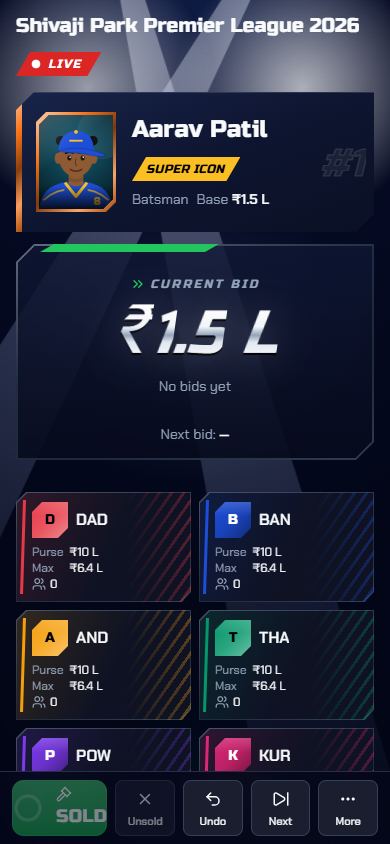
- 1Console: the organiser runs every player from one phone or laptop.
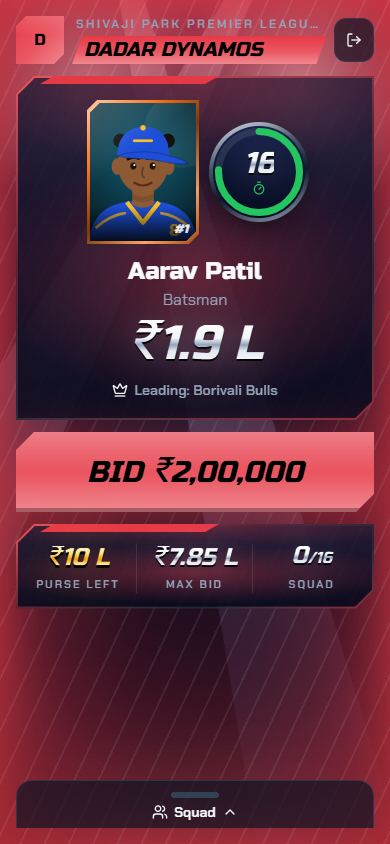
- 2Owner phones: each team owner logs in with a 6-digit PIN and bids from their own phone.
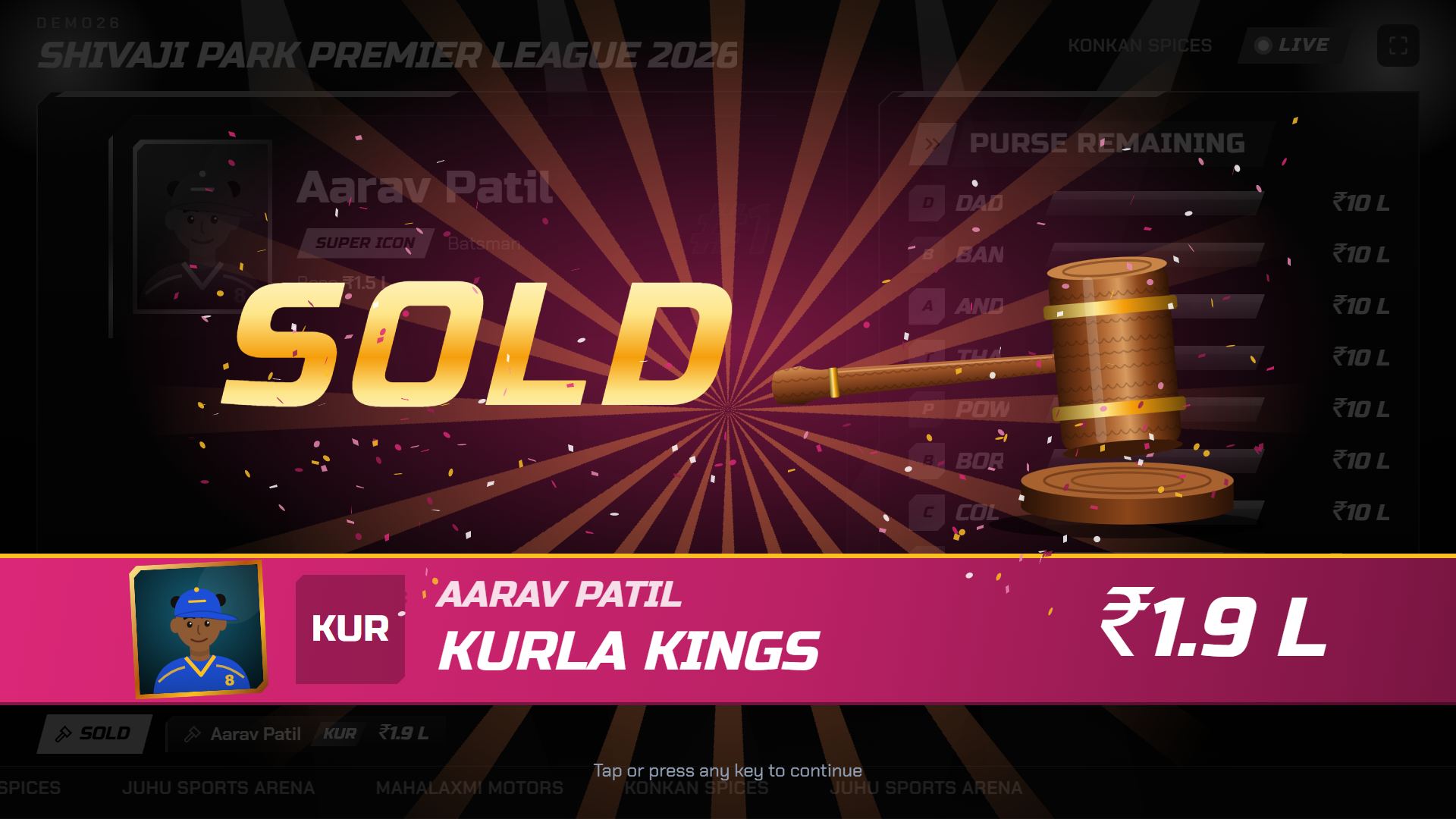
- 3Big screen: a projector or TV shows the player spotlight, bids, purses and a cinematic SOLD.
2. Sign up and choose a plan
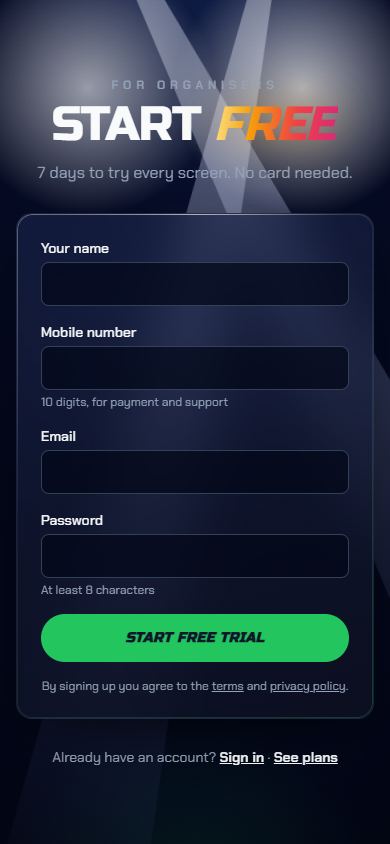
Create an organiser account at /signup. You get a 7-day free trial to try every screen with a small practice auction.
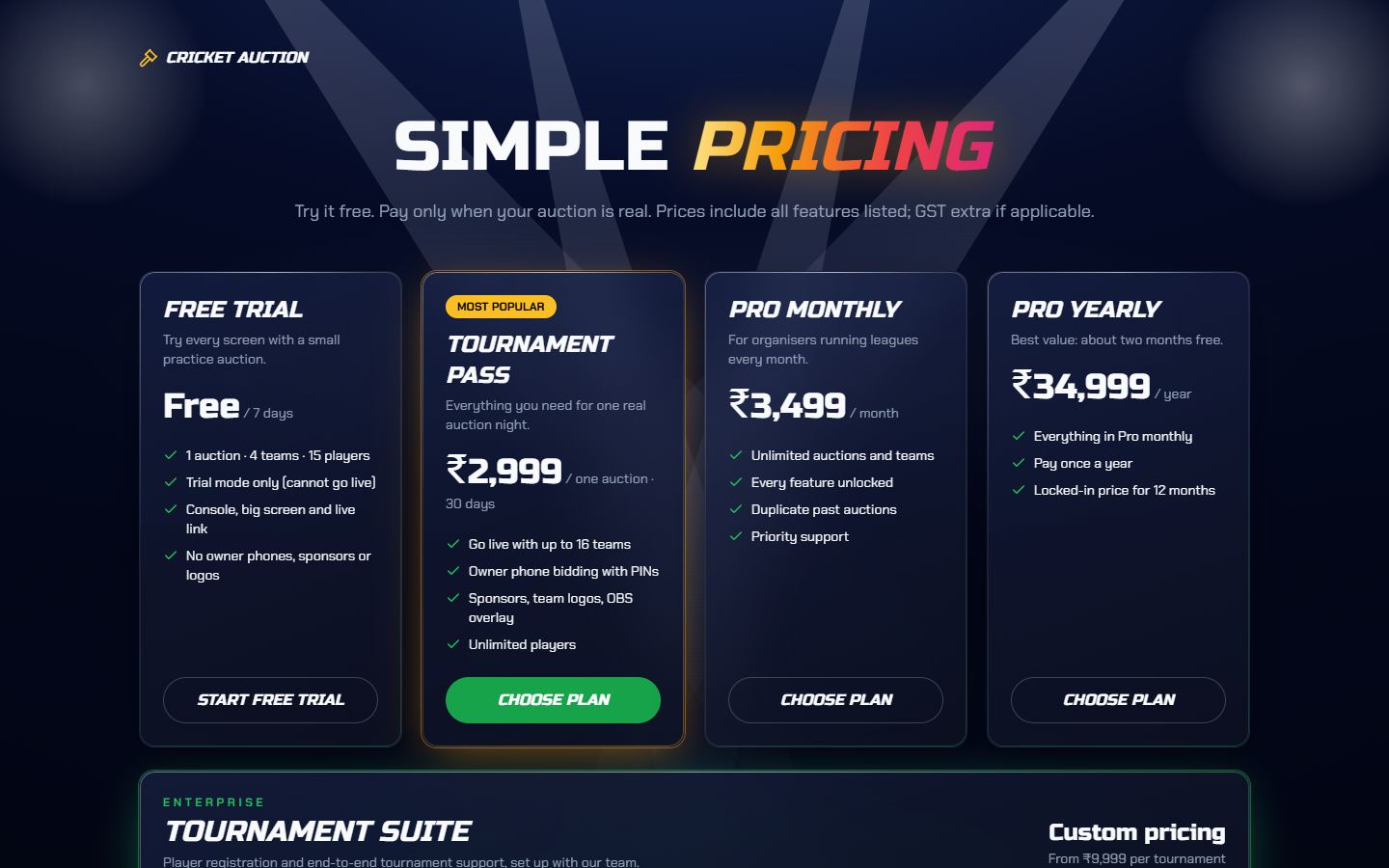
- 1Free trial: 1 auction, 4 teams, 15 players, trial mode only. Owner phones, sponsors, logos and the OBS overlay stay locked.
- 2Tournament pass (₹5,000 per auction): 30 days, go live with up to 16 teams and every feature. Have a coupon? Apply it on the payment page.
- 3Upgrade from Plan in the top bar: scan the UPI QR, pay, and enter the UPI reference (UTR). Your plan starts once the payment is confirmed.
3. Create the auction
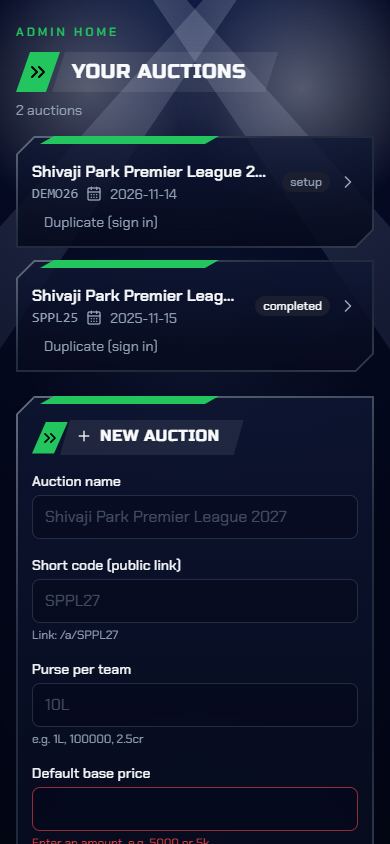
On Your auctions, fill in New auction and tap Create.
- 1Auction name and short code. The code becomes the public link, e.g. /a/DEMO26.
- 2Purse per team in points, e.g. 10L for 10,00,000 points. You can type 10L, 1000000 or 2.5cr. Every amount in the auction (purse, base price, bids) is in points, not rupees.
- 3Default base price, which is also the first bid increment, and min/max squad size.
- 4Under Settings: owner-mode timer (5–300 s), timer reset on each bid, pick mode (serial order, random, by category or manual pick), theme, and whether unsold players can return to the pool.
- 5Bid slabs: the increment grows with the amount, like a pro league auction. DEMO26 uses +5K points up to 50K, +10K up to 2L, then +25K.
- 6Duplicate an old auction to reuse its settings, slabs, categories, teams and sponsors next season (players are not copied).
4. Categories (your own names)
Categories are fully yours: Star and Super Icon are only the demo's names. Use A/B/C grades, U-19, Wicket-keepers or anything else.
- 1Setup → Categories → add a name, base price, and an optional bid increment override.
- 2Set min and max per team, e.g. exactly 1 Super Icon per team. The bid engine blocks a team that would break a quota.
- 3Sample: categories-sample.csv shows the six demo categories with base prices and limits.
5. Teams and owner PINs
- 1Setup → Teams → add one by one, or paste many at once: Name, Short, Owner, Owner mobile, Colour (see teams-sample.csv).
- 2Logos and a purse override are optional (logos need a paid plan).
- 3Tap Invite all owners: every team without a PIN gets one, and a WhatsApp button opens a chat with that owner, with their login link and PIN already typed.
- 4PINs are shown once. Five wrong PIN tries lock a team for 15 minutes; making a new PIN unlocks it.
6. Players
- 1Setup → Players → add players by hand, or Import an Excel/CSV file. Columns: Serial, Name, Phone, Role, Category, Base price, Batting style, Bowling style.
- 2Extra columns (like Age and Area in players-sample.csv) are kept as player details.
- 3Category names in the file must match your categories. Rows with problems are listed before anything is saved.
- 4Add photos in bulk; without a photo the screens show initials.
7. Sponsors and the Ready check
- 1Setup → Sponsors: add sponsor names and logos (paid plans). They rotate on the big screen every 6 seconds.
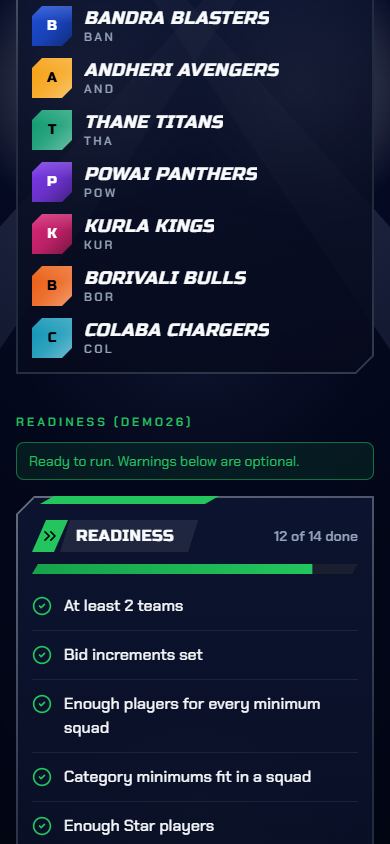
- 2Setup → Ready?: a checklist shows anything that would break the auction, such as too few players for every minimum squad, missing PINs, or category minimums that cannot fit.
8. Trial run, then go live
- 1Start trial and sell a few players to rehearse. Nothing counts yet.
- 2Reset trial clears the practice sales.
- 3Go live clears trial data and locks the purse, slabs and quotas. Going live needs a tournament pass for this auction.
9. Running the auction (console)
- 1Next brings up the next player by your pick mode. The big screen plays the spotlight intro.
- 2Tap a team to bid for it; the next amount follows your slabs. A Bidding war badge appears when teams trade bids fast.
- 3Press and hold SOLD to confirm the sale, so a stray tap never sells. Unsold moves the player on.
- 4Undo reverses the last action. Fix corrects a sale (team or price); Return to pool puts a player back.
- 5Re-auction all unsold brings unsold players back for another round.
- 6On a laptop: 1–9 bid for a team, ↑ raise a custom amount, S sold, U unsold, N next, Z undo, F full screen.
10. Owners bid from their phones
- 1Switch Owner mode on in the console between players.
- 2Owners open /a/CODE/team, choose their team and enter the PIN.
- 3They see the player, the timer, the current bid and their purse, max bid and squad, and tap Bid.
- 4The Bid button turns off by itself when a team cannot afford the bid or a category quota is full. When the timer runs out, the player is sold to the leader.
11. Big screen, live link and streaming
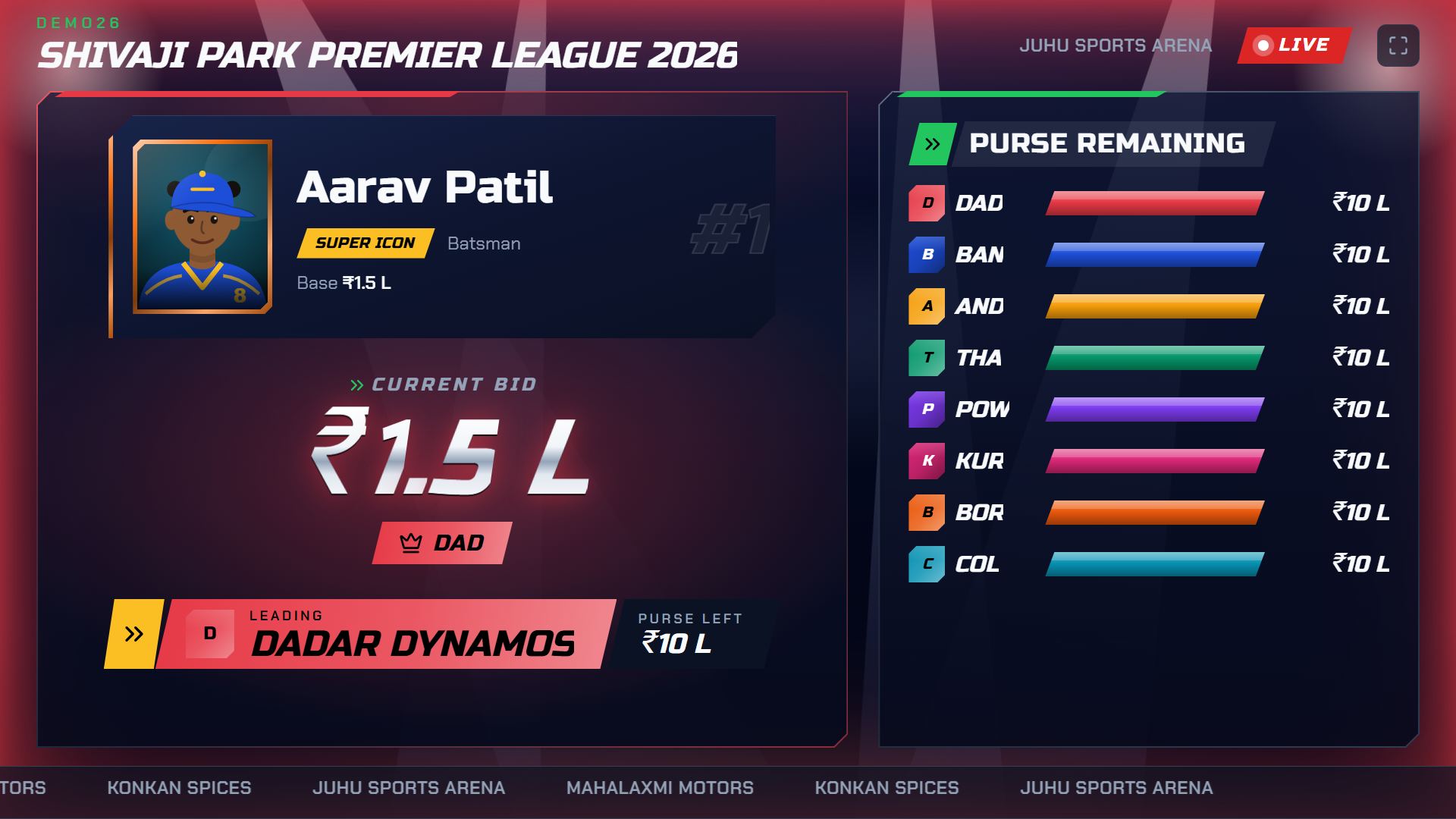
- 1Big screen: open /a/CODE/screen on the projector laptop and press F for full screen.
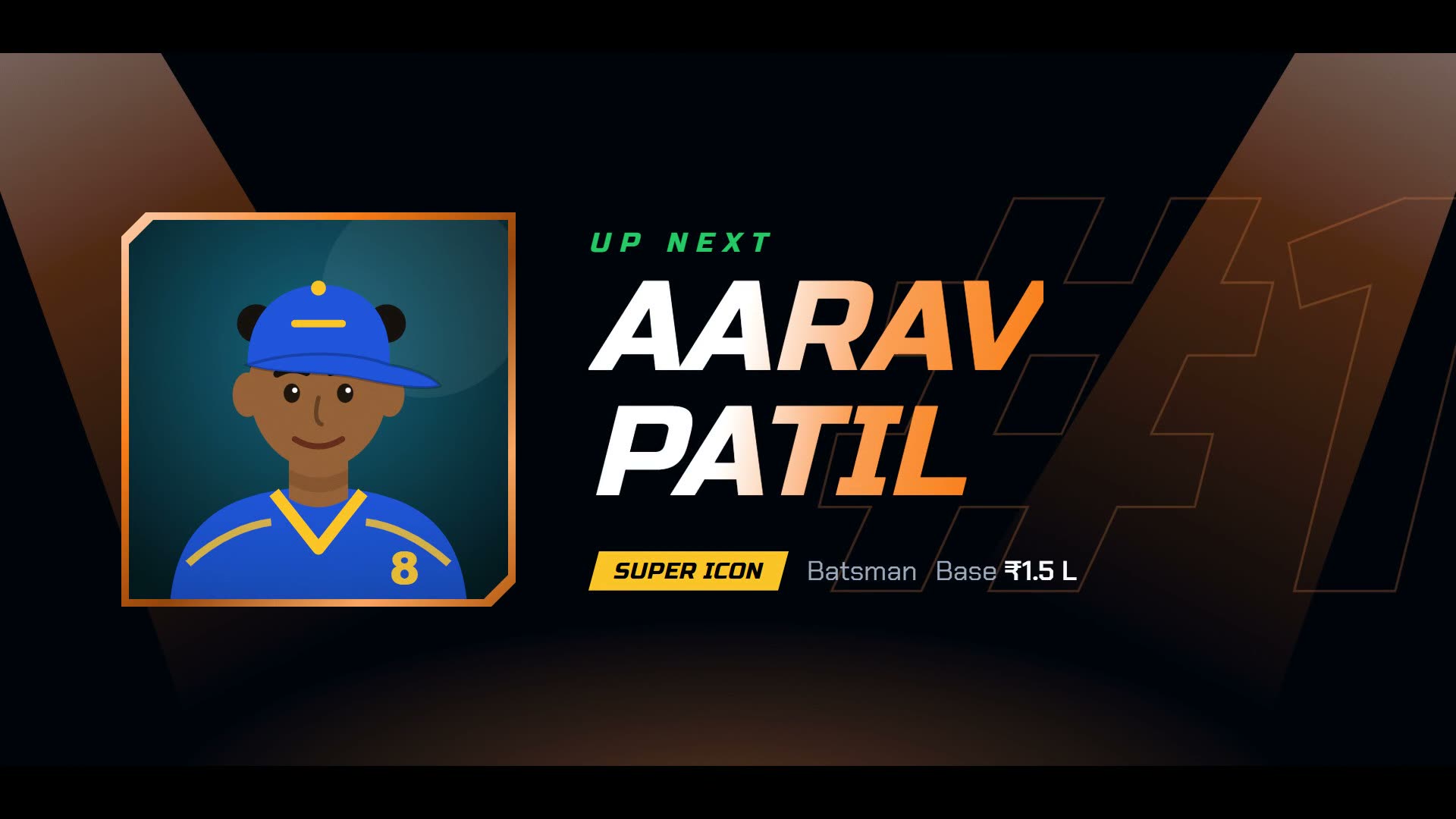
- 2Each player gets a spotlight intro, then live bids and purse bars, and the gavel SOLD moment with confetti.
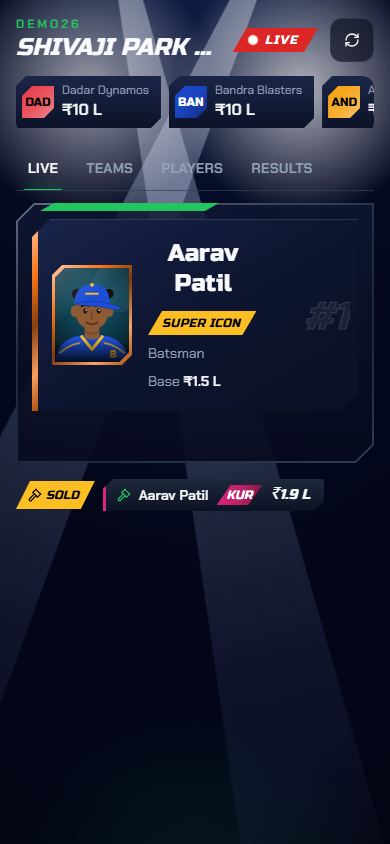
- 3Live link: share /a/CODE with everyone. It shows live, teams, players and results, and resyncs after a dropped connection.
- 4OBS overlay: add a Browser source at /a/CODE/overlay (1920×1080, transparent) to stream on YouTube (paid plans).
12. Enterprise: player registration and fees
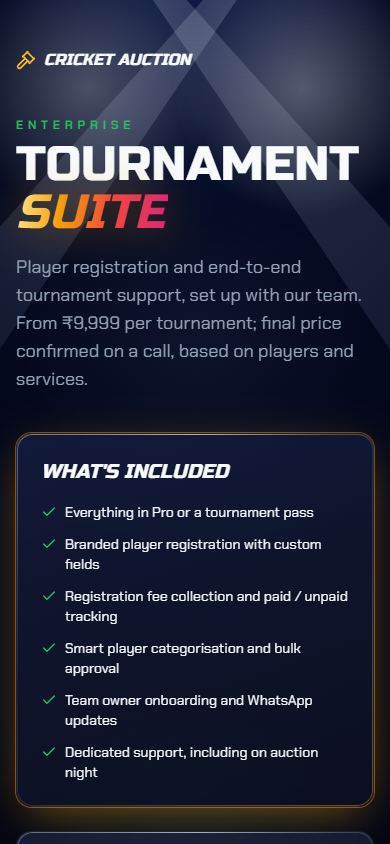
Player registration is part of the Enterprise Tournament Suite. Request a call at /enterprise; once it is switched on for your auction, Setup → Registration unlocks.
- 1Build the form: choose which fields are hidden, optional or required, add custom fields (text, number or choice), set max entries and a message.
- 2Share the registration link or QR on WhatsApp.
- 3Registration fee: enter the amount and your UPI ID. Players see a UPI QR after submitting, pay, and enter their UTR.
- 4Verify each fee (or waive it). With "only approve verified" on, unpaid players cannot be approved.
- 5Smart categories: add rules such as Role is Wicket-keeper → WK pool, or Age is at most 18 → U-19. Select players and tap Approve selected; each gets the category from the first matching rule.
- 6Search by name, phone or UTR, filter by fee status, bulk reject, and Export CSV for your accounts.
13. Tips for auction night
- 1Run a full trial the day before with two owner phones and the projector.
- 2Keep the console phone charged and on Wi-Fi; screens reconnect and resync automatically if the internet drops.
- 3Share the live link in your WhatsApp group before you start, so families and players can follow.
- 4Use Undo straight away for a wrong tap, and Fix for a wrong sale found later.
Ready to run yours?